How to OP Yourself or Another Player on a Minecraft Server
OP, short for operator, gives a player access to important Minecraft server commands. Server operators can run commands such as changing gamemode, teleporting players, giving items, banning players, editing command blocks, and managing other operators, depending on their permission level. In general, if a player has OP, they have access to every command.
If you own or manage a Minecraft server, you may need to OP yourself before you can use admin commands in-game. You can also OP trusted staff members so they can help moderate and manage the server.
This guide explains how to OP a player on a Minecraft server, how to remove OP, how OP permission levels work, and what to do if the command does not work.
What Does OP Mean in Minecraft?
In Minecraft, an OP is a server operator. Operators have access to commands that normal players cannot use.
For example, an opped player may be able to use commands like: /gamemode creative /tp <player> /give <player> minecraft:diamond /ban <player> /kick <player>
The exact commands an operator can use depend on the server’s OP permission level, and which commands the server has enabled.
OP should only be given to players you trust. Operators can make major changes to the server, and higher-level operators may be able to give items, change world settings, ban players, or stop the server.
How to OP Yourself on a Minecraft Server
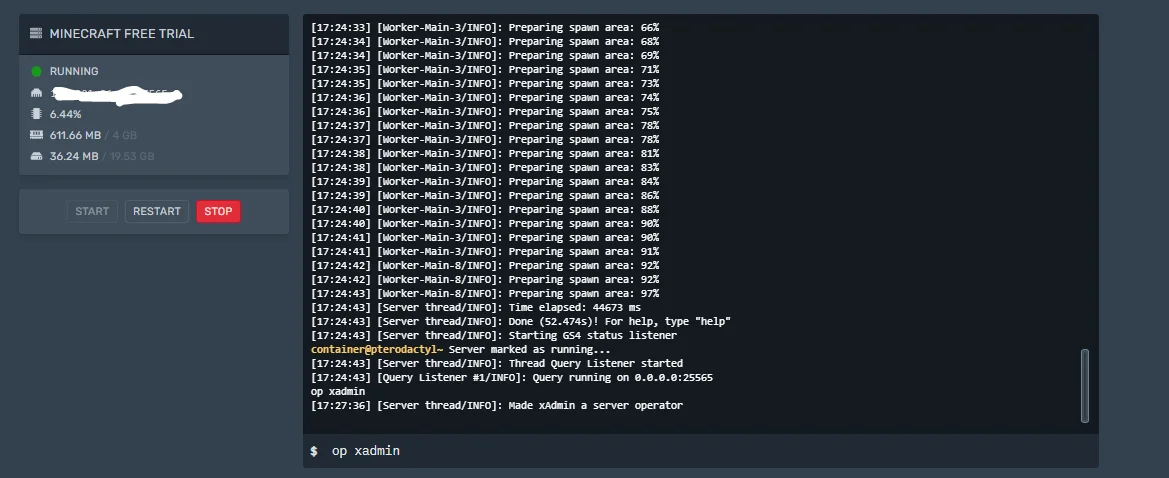
The easiest way to OP yourself is through your server console. This works even if you do not already have permission to use admin commands in-game.
- Open your Minecraft server hosting panel.
- Go to the server console.
- In the console, type:
op <username>, for example:op Steve - Press Enter.
- If the command worked, you should see a message saying that the player has been made a server operator.
Once you are opped, join the server and try running an admin command, such as:
/gamemode creative
If the command works, your account now has operator permissions.
How to OP Another Player
You can OP another player from the server console using the same command:
op <username>
Replace <username> with the player’s exact Minecraft username.
For example: op Alex
You can also OP a player in-game if you are already an operator with permission to use the /op command:
/op <username>
Using the console is usually the safest method because the console has full permission to run server commands.
How to Remove OP From a Player
If you no longer want a player to have operator permissions, you can remove their OP status with the deop command.
From the server console, run:
deop <username>
For example: deop Steve
If you are already opped and have permission to use the command in-game, you can also run:
/deop <username>
After this, the player will no longer have operator permissions.
How to Set the Default OP Permission Level
Minecraft servers have OP permission levels. These levels control how much access operators have.
You can change the default OP level in your server settings or in the server.properties file.
If your host has a game panel:
- Stop your Minecraft server.
- Open your server hosting panel.
- Go to the server settings or configuration files section.
- Find the setting called
OP Permission Level. - Choose a level from 1 to 4.
- Save your changes.
- Start the server again.
If you are editing the files manually:
- Stop your server.
- Open your server folder.
- Find the
server.propertiesfile. - Open it in a text editor.
- Find this line:
op-permission-level=4
- Change the number to the OP level you want.
- Save the file.
- Restart the server.
The default value is usually:
op-permission-level=4
This means new operators will receive the highest operator permission level by default.
Minecraft OP Permission Levels Explained
Minecraft Java Edition uses OP permission levels from 1 to 4. Higher levels include the permissions from the levels below them.
OP Level 1
Level 1 is the lowest OP level. It mainly allows operators to bypass spawn protection.
This level does not give access to most admin commands.
OP Level 2
Level 2 allows operators to use many common server management commands, including commands related to gamemode, teleporting, giving items, effects, difficulty, gamerules, summoning entities, and editing command blocks.
This is often enough for trusted builders or staff members who need creative tools but should not have full server control.
OP Level 3
Level 3 gives access to more powerful moderation commands, including commands such as /ban, /kick, /op, and /deop.
This level should only be given to trusted admins, because they may be able to manage other operators.
OP Level 4
Level 4 is the highest OP level. It includes all lower-level permissions and also allows access to the most powerful server commands, such as /stop.
This level should usually be reserved for the server owner or highly trusted administrators.
Should You Give OP to Staff Members?
You should be careful when giving OP to staff members. OP gives broad access, especially at higher permission levels.
For public Minecraft servers, it is often better to use a permissions plugin instead of giving every staff member full OP. Plugins such as LuckPerms let you give specific permissions to specific ranks, instead of giving players access to every operator command.
For small private servers with friends, using OP may be enough. For larger public servers, OP should usually be limited to owners and senior admins. For normal staff, you should create staff ranks with a permissions plugin, and give them that rank instead of OP.
Why Is the OP Command Not Working?
If the op command is not working, check the following:
- Make sure you are running the command from the server console.
- Do not include a slash when using the console. Use
op Steve, not/op Steve. - Make sure the username is spelled correctly.
- If the server is in online mode, the username must be a real Minecraft account.
- If you are using the command in-game, make sure you are already opped and have permission to use
/op. - Restart the server if you changed OP levels in
server.properties. - Check that plugins are not overriding permissions.
The most reliable way to OP a player is always through the server console.
How to Check If Someone Is OP
On a standard Minecraft server, operators are stored in the ops.json file inside the server folder.
If you are self-hosting, you can open this file to see which players are currently opped. However, you should usually use the op and deop commands instead of editing ops.json manually.
If you do edit ops.json, stop the server first, make your changes carefully, and then start the server again.
FAQ
Do You Need OP to Use Commands?
Some basic commands may be available to normal players, but most admin commands require OP or plugin permissions. Commands such as /gamemode, /give, /ban, and /op usually require operator permissions.
Can You OP Yourself In-Game?
You can only OP yourself in-game if you already have permission to use the /op command. If you are not already opped, use the server console instead. In general, you cannot OP yourself in-game.
Can You OP Someone Without Restarting the Server?
Yes. The op <username> command works immediately and does not require a restart.
However, if you change the default OP permission level in server.properties, you should restart the server for that setting to apply correctly.
What Is the Best OP Level to Use?
For most small private servers, level 4 is simple and gives full access. For larger servers, it is safer to use lower OP levels or a permissions plugin.
Only give level 4 to people you fully trust.
Is OP the Same as Admin?
Not exactly. OP is Minecraft’s built-in operator system. Admin is usually a staff rank created by the server owner, often through a permissions plugin. On small servers, OP and admin may mean almost the same thing, but on larger servers they are usually managed separately.
Final Thoughts
Giving a player OP is one of the easiest ways to grant admin access on a Minecraft server. To OP yourself or another player, open the server console and run:
op <username>
To remove OP, run:
deop <username>
OP is powerful, so only give it to players you trust. For private servers, OP is usually fine. For public Minecraft servers, consider using a permissions plugin for better control over what each staff member can do.